Private domains. How to get your own Temporary Email
Private domains. How to get your own Temporary Email
In this article, we'll introduce Private Domains for Temporary Email and how they help you to bypass common issues with registration and test email delivery.
This information will be useful to you if:
- Your temporary email is not accepted at registrations.
- You need a personal, nice-looking domain for your email.
- You need to test email delivery from a website or application (QA).
Why can't I sign up with a temporary email?
If you have registered on sites like Facebook or Instagram, you have probably encountered a situation where your email is not accepted or a confirmation email with a code is not sent to you. This is a result of a hidden security algorithm that blocks your registration as undesirable.
There can be many reasons for this to happen, and here are the main ones:
1. Public domains. When you create a temporary email with a public domain, no one can guarantee that it is not already on the blacklist of the particular service you are trying to register for.
For example, if the email address use239@cooltempmail.com is blacklisted by the service, the whole domain @cooltempmail.com may be blocked as potentially risky.
2. Blacklists. Many services simply do not like temporary email and prefer to ban their usage.
While Temp Mail keeps the list of domains constantly updated, even we cannot promise 100% that the desired service will accept your temporary email.
As a result, your registration with the service may be rejected or your account may be put on hold.
How to avoid it?
There is only one way to avoid the above situations, and that is through the use of a Private Domain.
What is a Private Domain and why should you use it?
A Private Domain is a personal domain that you can register and bind to your Temp Mail account in order to create a temporary email address. Such a domain is available only to you, which means that there is no risk that it has been used before.
Advantages:
- Full control of the domain.
- Has not been used anywhere before.
- Choose any name you want for your mailbox.
- Great for testing.
Cons:
- Requires you to buy or own a domain in advance.
- It takes a little time to bind.
When it’s useful:
- To test submission and registration forms on the site or app.
- To create long term accounts.
- For a personal email box.
How to bind a domain to a Temporary Mail?
All you need to do is register a domain, add a DNS record (MX), and connect to your Temp Mail account.
It may sound complicated, but it is a rather simple process.
Step 1: Register a domain.
You can register a domain on the following services:
- Namesilo
- Namecheap
- Godaddy
- and many others...
The price to register a domain for the year starts at $2-9 depending on the zone (.com ~$9, .net ~$12).
Find an available domain name and buy your own domain.

Step 2: Add a domain to Temp Mail.
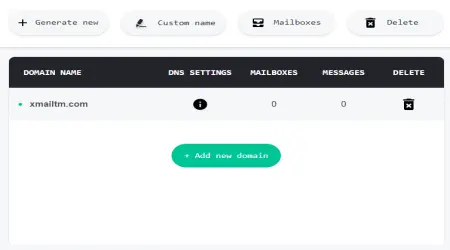
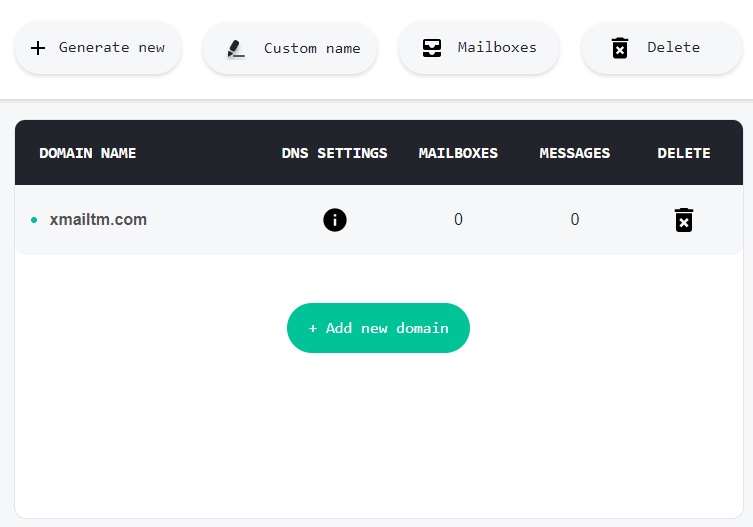
Once the domain is purchased, you can add it to your Temp Mail account under ‘Personal Domains’ (Android) or just ‘Domains’ (on the website).

Press the ‘Add’ button and enter the domain name.

In the window, you will see what DNS record must be added to the domain.

Let's leave this window open for now and go back to the registrar.
Step 3: Add a DNS record.
Return to the site where you registered the domain and open its DNS settings.
We only need to add one entry, for the MX.
MX → mx.mail....
All other entries can be deleted if you don't need them.


Wait about 15-60 minutes for the DNS changes to be propagated.
Step 4: Complete Domain Binding.
Return to your Temp Mail account and click ‘Check DNS.’
If you have closed the window, you can click ‘add domain’ again; DNS settings will not change.


The domain has been successfully added!
Now you can create a personal temporary email address with this domain on the main screen.